
SARDU MultiBoot Creator Free Download for Windows
What is SARDU MultiBoot Creator Free Download for Windows?
The SARDU MultiBoot Creator free download gives you a powerful tool to build one bootable USB drive with many operating systems and tools. Instead of carrying dozens of CDs or USB sticks, you put everything on a single drive. You can add antivirus rescue disks, Linux distributions, Windows installers, and recovery utilities. SARDU stands for Shardana Antivirus Rescue Disk Utility, and it is trusted by IT pros and technicians worldwide.
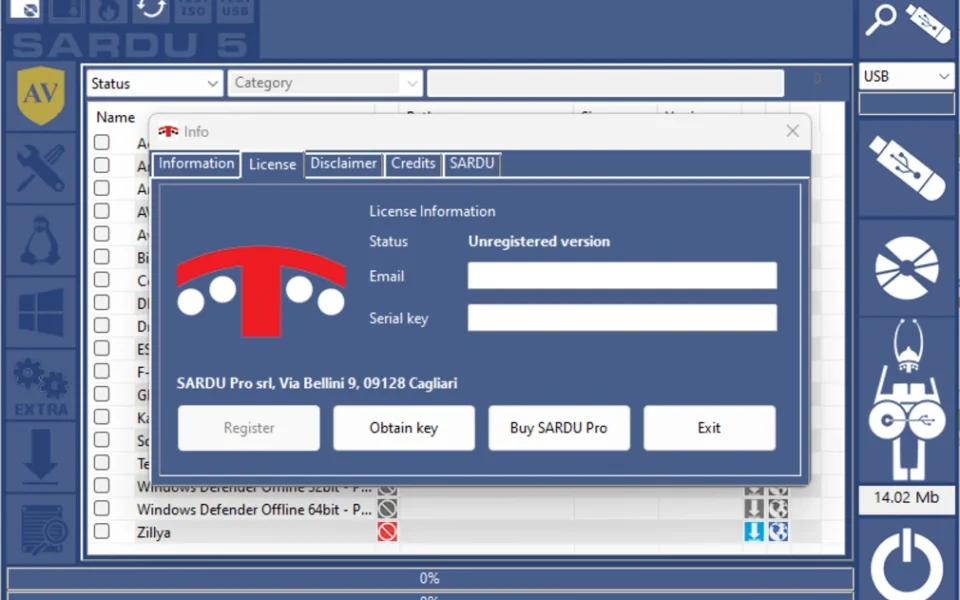
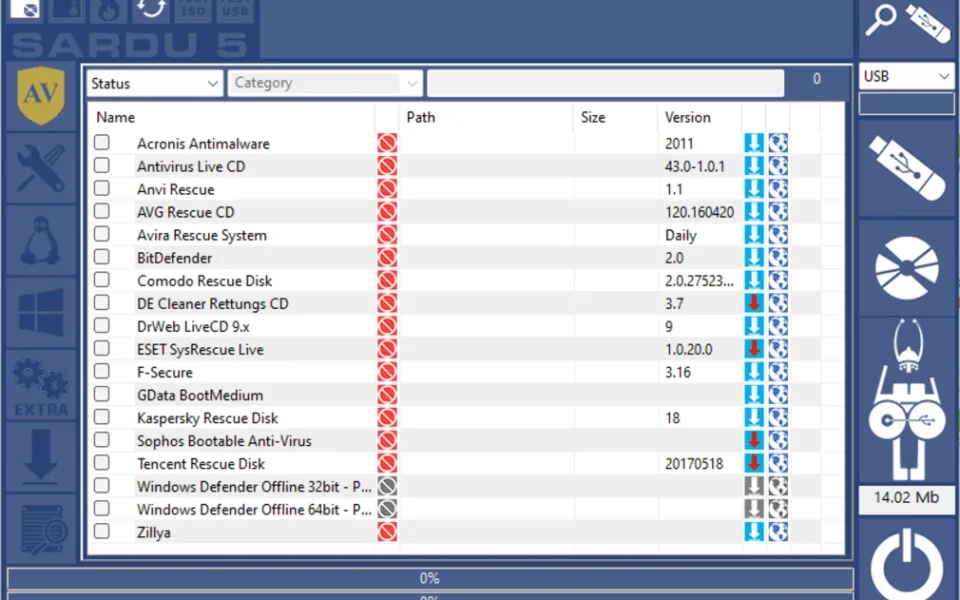
SARDU works by letting you pick from a catalog of over 300 bootable ISO images. Its built-in downloader fetches the ISOs you want, and then builds your multiboot USB in one step. The menu is split into clear categories: Antivirus, Utility, Linux, and Windows. For another handy disk tool, check out Win32 Disk Imager which helps you write and back up disk images on Windows.
After testing it on a spare USB drive, the layout felt clean and the category sidebar made it easy to find rescue tools fast. The free version is best suited to home users and technicians doing personal repairs, while the Pro version adds UEFI boot and commercial use. According to FileHorse, SARDU remains a top choice in 2026 for IT professionals who need a full multiboot toolkit on one drive.
Why Use This Software?
- The SARDU MultiBoot Creator free download puts all your boot tools on one USB drive.
- No need to carry dozens of CDs or separate USB sticks anymore.
- Add antivirus rescue disks to scan and clean infected PCs offline.
- Install Windows XP through 11 straight from one USB.
- Try over 200 Linux Live distributions without installing them.
- Built-in downloader fetches ISOs for you automatically.
- Free for personal use, with an affordable Pro upgrade for more features.
Screenshots
Key Features
- 💿 300+ Bootable ISOs – Pick from a huge catalog of antivirus, Linux, and Windows images.
- 🦠 Antivirus Rescue Disks – Add offline scanners like Kaspersky, ESET, and Avira to one USB.
- 🐧 Linux Live Support – Include Ubuntu, Fedora, Debian, and 200+ other Linux distributions.
- 🪟 Windows Installers – Build USB installers for Windows XP, 7, 8, 10, and 11.
- ⬇️ Built-in Downloader – Fetch ISO images straight from the internet inside the app.
- 🔧 Recovery Utilities – Add partition managers, diagnostics, and network repair tools.
- 💾 USB and DVD Output – Create a bootable USB drive or burn a multiboot DVD.
- 🧪 QEMU Test Mode – Test your multiboot drive inside the app before using it.
- 🔌 BIOS and UEFI – Supports both Legacy BIOS and UEFI boot (UEFI in Pro version).
- 📦 Portable Tool – Run SARDU from a USB drive with no installation needed.
How to Install
- Download the SARDU MultiBoot Creator ZIP file from the link below.
- Extract the ZIP to any folder on your PC.
- Run the SARDU executable — no installation needed.
- Select the ISOs you want from the Antivirus, Linux, Utility, or Windows tabs.
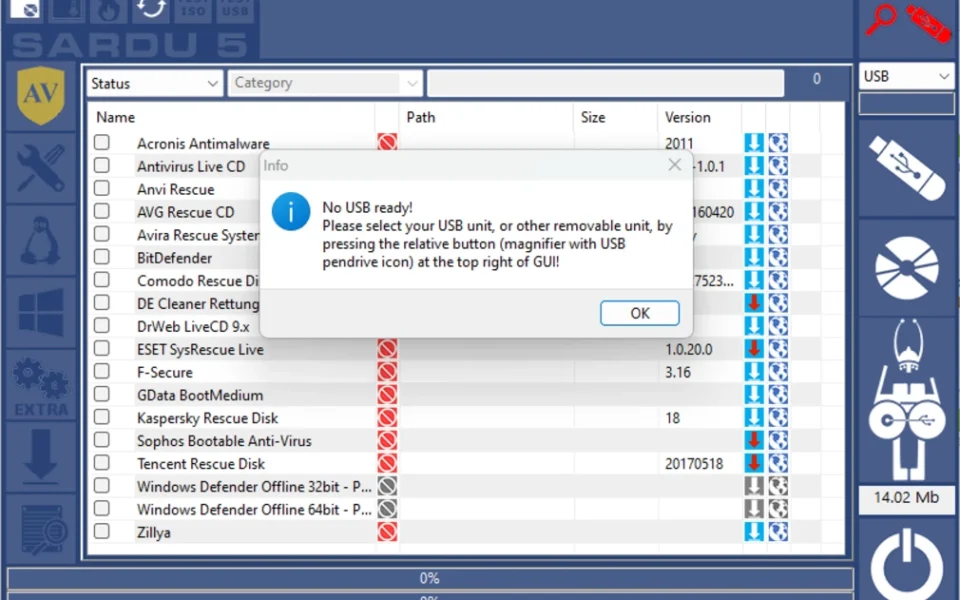
- Plug in your USB drive, select it, and click build to create your multiboot drive.
- Also Download NTLite for Windows – Free
System Requirements
| OS | Windows 7, 8, 8.1, 10, 11 (32/64-bit) |
| CPU | Intel or AMD Processor |
| RAM | 1 GB minimum |
| Storage | 50 MB free + space for ISOs |
| Other | USB drive (8 GB or larger recommended) |
| File Size | ~14 MB |
Pros and Cons
Pros
- Builds one USB with many OS and tools
- Supports 300+ bootable ISO images
- Antivirus, Linux, and Windows in one place
- Built-in downloader for ISOs
- Works with USB and DVD
- Portable — no installation needed
- QEMU test mode included
- BIOS and UEFI support
- Trusted by IT professionals
- Free for personal use
Cons
- Free version is limited in features
- UEFI boot needs the Pro license
- Setup prompts can confuse beginners
- Pro license needed for commercial use
- Some uncommon ISOs not supported
- Free version shows registration nags
- Large ISOs need a big USB drive
- More complex than single-ISO tools
- Interface looks a bit dated
- Best features are paid
Power Tips
Conclusion
The SARDU MultiBoot Creator free download is a must-have tool for anyone who repairs or maintains PCs. It saves you from carrying piles of discs by putting antivirus tools, Linux distributions, and Windows installers on one bootable USB drive.
In real-world use, SARDU is best suited to technicians, IT admins, and advanced users who need a full rescue toolkit ready at all times. The free version covers personal repair needs well, while the Pro version unlocks UEFI boot and commercial use. If you want one drive that does it all, the SARDU MultiBoot Creator free download is one of the most capable options for your Windows PC.







Comments (0)