
What is VidCoder Free Download for Windows?
The VidCoder free download gives you a powerful, open-source tool to rip DVDs, Blu-rays, and convert video files on Windows. It uses the trusted HandBrake engine under the hood, but adds a cleaner and richer interface. You can convert videos to MP4 or MKV, shrink large files, and prepare clips for phones or tablets. VidCoder is completely free with no ads, no watermarks, and no hidden costs.
VidCoder calls directly into the HandBrake library, which gives it a smoother UI than the official HandBrake Windows app. It handles the whole encoding job in one process, so there are no huge temporary files left behind. You do not even need HandBrake installed for it to work. For another great media tool, check out Format Factory which converts audio and video files on Windows.
After testing it on a few large MKV files, the built-in preview feature stood out — it encodes just a small clip so you can check your settings before running the full job. VidCoder is best suited to users who want HandBrake's power without its steep learning curve. According to its official site, VidCoder is built by RandomEngy with the core engine maintained by the HandBrake team.
Why Use This Software?
- The VidCoder free download gives you HandBrake's power with an easier interface.
- Rip your DVD and Blu-ray collection into digital MP4 or MKV files.
- Shrink large videos to save space without losing much quality.
- Hardware acceleration makes encoding much faster on modern PCs.
- Batch encoding handles many files while you do other work.
- Pause and resume lets you free up CPU whenever you need it.
- Free, open source, and updated regularly by an active developer.
Screenshots
Key Features
- 🎬 DVD and Blu-ray Ripping – Rip discs and convert their content to digital video files.
- 🔄 Video Transcoding – Convert videos to MP4, MKV, and other formats with the HandBrake engine.
- ⚡ Hardware Acceleration – Speed up encoding with Intel QuickSync, Nvidia NVENC, and AMD VCE.
- 📦 Batch Encoding – Queue and process many video files at once for efficient workflows.
- 👁️ Instant Previews – Encode a small clip to test your settings before the full job.
- 📁 Folder Watcher – Auto-encode any video file dropped into a watched folder.
- 🎚️ Advanced Filters – Apply deinterlace, decomb, and color correction for better quality.
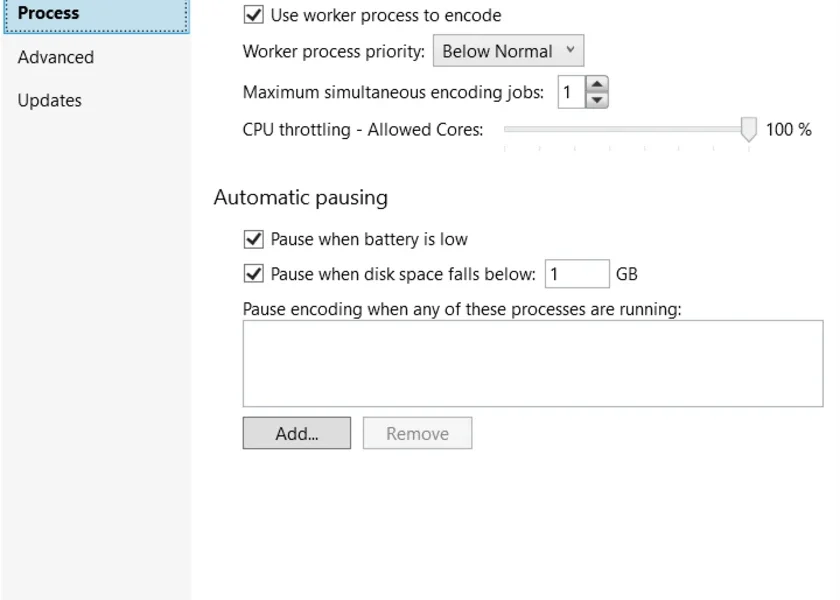
- ⏸️ Pause and Resume – Pause encoding to free up CPU, then resume when ready.
- 🎯 Customizable Pickers – Auto-select audio tracks, subtitles, destinations, and titles.
- 🆓 Free and Open Source – No cost, no ads, with full source code on GitHub.
How to Install
- Download the VidCoder installer or portable version from the link below.
- Run the installer, or extract the portable version to any folder.
- If prompted, allow VidCoder to install the .NET Desktop Runtime.
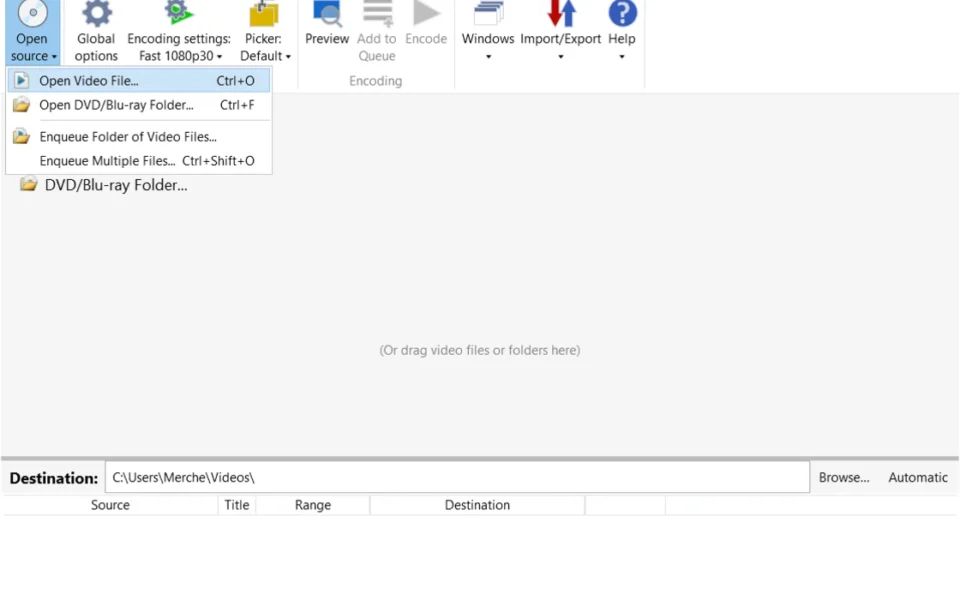
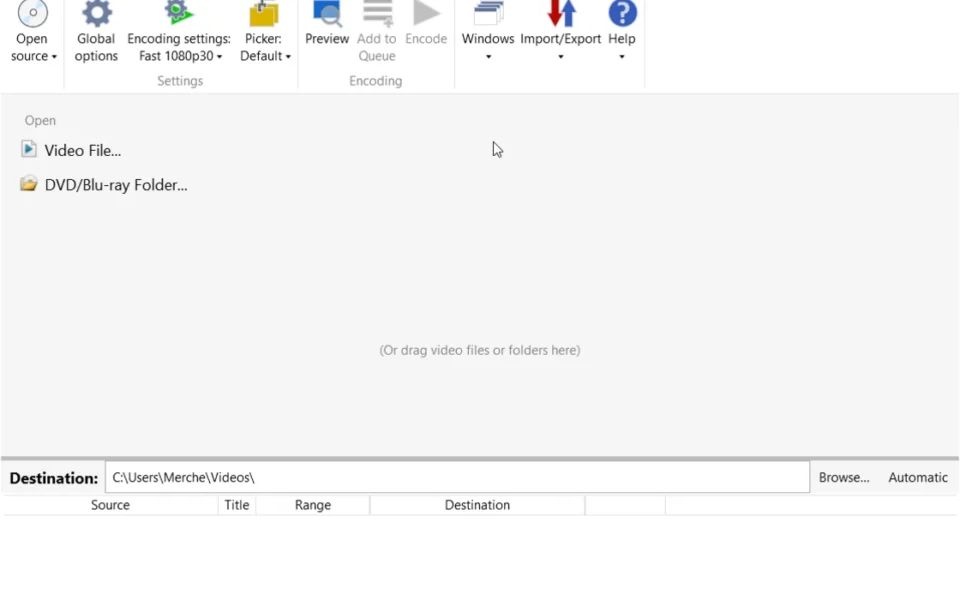
- Launch VidCoder and open a video file, DVD, or Blu-ray folder.
- Pick your output format and quality, then click Encode to start.
- Also Download VLC Media Player for Windows – Free
System Requirements
| OS | Windows 10, 11 (64-bit) |
| CPU | Intel or AMD Processor |
| RAM | 2 GB minimum (4 GB recommended) |
| Storage | 100 MB free disk space |
| Other | .NET Desktop Runtime (auto-prompted) |
| File Size | ~47 MB |
Pros and Cons
Pros
- Free and open source
- Cleaner UI than HandBrake
- Rips DVDs and Blu-rays
- Hardware-accelerated encoding
- Batch and queue encoding
- Instant preview clips
- Pause and resume support
- Folder Watcher automation
- No ads, watermarks, or cost
- Built on the trusted HandBrake engine
Cons
- Windows only, no Mac or Linux build
- Cannot decrypt protected commercial discs
- Needs .NET runtime (auto-installs)
- Encoding is CPU-heavy on weak PCs
- Some advanced options lack guidance
- Requires third-party tools for encrypted discs
- Large files take time on older hardware
- Portable version is a large download
- Best with a modern multi-core CPU
- Beta features may have minor bugs
Power Tips
Conclusion
The VidCoder free download is one of the best free video tools for Windows. It takes the powerful HandBrake engine and wraps it in a friendly interface that both beginners and pros can enjoy. From ripping discs to converting and compressing video, it handles the full job in one clean app.
In real-world use, VidCoder is best suited to people archiving their DVD and Blu-ray collections or converting videos for different devices. It keeps everything in one process, supports hardware acceleration, and never leaves messy temp files behind. If you want HandBrake's quality with less hassle, the VidCoder free download is a top choice for your Windows PC.




Comments (0)