
What is PingPlotter Free Download for Windows?
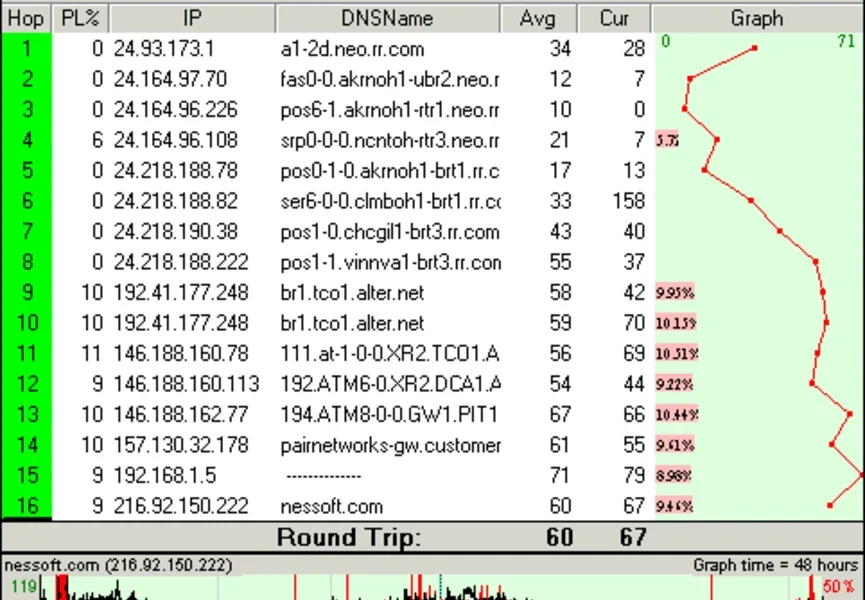
The PingPlotter free download gives you a powerful visual tool to find and fix network problems on Windows. Moreover, it combines ping and traceroute into one clear graphical view. Instead of reading plain text results, you see exactly where delays and packet loss happen along the route. Therefore, you can pinpoint the troublesome network hop in seconds. Built by Pingman Tools, PingPlotter is trusted by IT pros, gamers, and home users alike.
PingPlotter works by sending packets to a target and recording each hop along the way. As a result, it measures latency, packet loss, and jitter at every step. In addition, it keeps a history of this data, so you can catch problems that come and go. For another handy network tool, check out System Information Viewer which shows detailed hardware and network info on Windows.
After testing it on a home connection, the timeline graph made it easy to spot a laggy hop at the ISP level within minutes. Furthermore, sharing the results with support took just one click. The PingPlotter free download is best suited to anyone troubleshooting slow internet, lag, or dropped connections. According to its official site, PingPlotter measures latency, packet loss, jitter, and MOS scores, and can trace up to 250 targets at once.
Why Use This Software?
- The PingPlotter free download shows network problems in a clear visual graph.
- Moreover, it pinpoints the exact hop causing lag or packet loss.
- In addition, the timeline graph catches issues that come and go.
- Furthermore, custom alerts warn you the moment trouble starts.
- Also, you can share results with your ISP or support in one click.
- Besides, it traces many targets at once to save time.
- Finally, the free version covers basic home troubleshooting needs.
Screenshots
Key Features
- 📈 Visual Traceroute – Shows the full network path with latency and loss at every hop.
- 🕒 Timeline Graph – Records data over time so you can catch problems that come and go.
- 📉 Packet Loss Detection – Pinpoints exactly which hop is dropping your packets.
- 📊 Latency and Jitter – Measures round-trip times and jitter for a clear health view.
- 🎯 Multi-Target Tracing – Trace up to 250 targets at once in one window.
- 🔔 Custom Alerts – Get notified the moment latency or loss crosses your set limits.
- 🌐 Multiple Packet Types – Choose ICMP, UDP, or TCP to suit your network setup.
- 📤 Easy Sharing – Export or post results online to share with support in one click.
- 🖥️ Local Network Scan – Scan your network and list every connected device.
- 🌙 Dark Mode – A dark theme is now available for comfortable night use.
How to Install
- First, download the PingPlotter installer from the link below. Then, run the setup file and follow the simple steps. Next, launch PingPlotter and enter a target like a website or IP address. After that, click the play button to start tracing. Finally, watch the graphs to see where problems appear.
- Download the PingPlotter installer from the link below.
- Run the setup file and follow the installation steps.
- Launch PingPlotter and enter a target address.
- Click the play button to start the trace.
- Read the graphs to find the problem hop.
- Also Download System Information Viewer for Windows – Free
System Requirements
| OS | Windows 7, 8, 8.1, 10, 11 (64-bit) |
| CPU | Intel or AMD Processor |
| RAM | 1 GB minimum |
| Storage | 100 MB free disk space |
| Internet | Required for tracing targets |
| File Size | ~20 MB |
Pros and Cons
Pros
- Clear visual traceroute graphs
- Pinpoints the exact problem hop
- Timeline graph for long-term data
- Custom alerts and notifications
- Traces up to 250 targets
- Multiple packet types (ICMP, UDP, TCP)
- One-click result sharing
- Local network device scan
- Dark mode for night use
- Trusted by IT pros and gamers
Cons
- Free version is limited in features
- Advanced features need a paid plan
- Windows and Mac only, no Linux
- Pro edition can be pricey
- Learning curve for beginners
- Some options require admin rights
- Free tier limited to two targets
- Continuous tracing uses bandwidth
- Needs internet to trace
- Full power locked behind subscription
Power Tips
Conclusion
The PingPlotter free download is one of the best visual network troubleshooting tools for Windows. It turns plain ping and traceroute data into clear graphs, so you can spot exactly where lag and packet loss happen. Moreover, its timeline view catches problems that appear and disappear over time.
In real-world use, PingPlotter is best suited to gamers, remote workers, and IT pros who need to prove where a connection breaks down. While the free version is limited and full features need a paid plan, its visual approach is hard to beat. Therefore, if you want to solve slow or unstable internet, the PingPlotter free download is well worth a try on your Windows PC.




Comments (0)